- Log into Octane, enter the customers company name in the search bar, then press Enter.

- You may get multiple results, identify the correct Company & then click Manage.
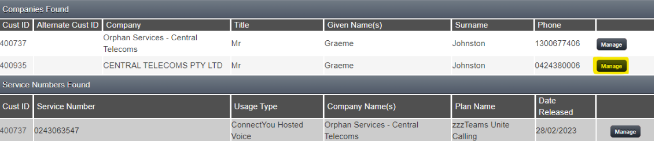
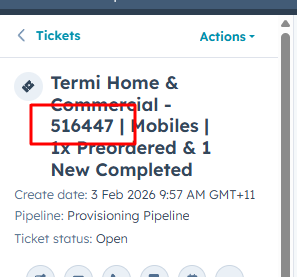
- Once you are in the right account, copy the account number then paste to the Hubspot Ticket Title.
- Click the Sell: dropdown, then select Mobile.
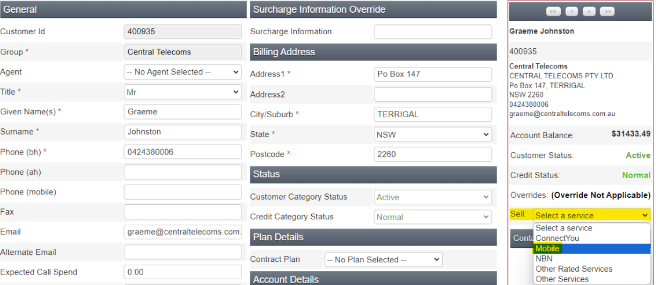
- Select the fields shown below. Then click Next.

- Open the Customers Mobile Order ticket in Hubspot. Then fill out the details highlighted below. Make sure the Mobile Number & SIM number correlate (based on the table in the Mobile Order ticket).
Remember that for postpaid, use account number or customer ID (Telstra). For Prepaid, use the Date of Birth (dd/mm/yyyy)
The Usage Notification email will be the main contact noted in the Mobile Order ticket.
If you know the users name, fill this in Line Name - if not, leave it blank.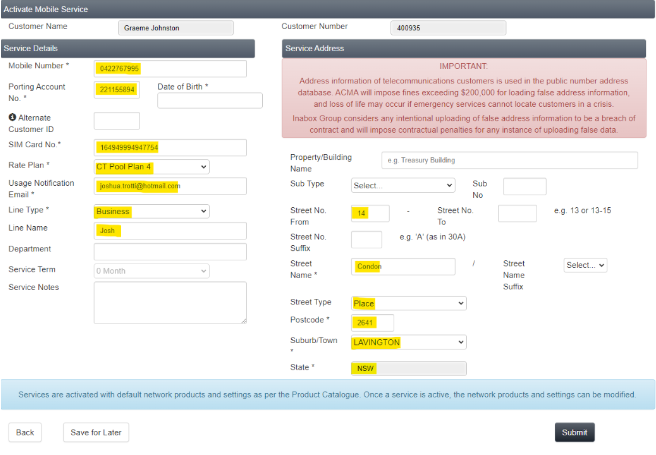
- Once you’ve filled out the information above, click Save for Later. You will then be directed to a confirmation page showing that the pre-order has been successfully submitted.
-png.png?width=670&height=345&name=Screenshot%20(47)-png.png)
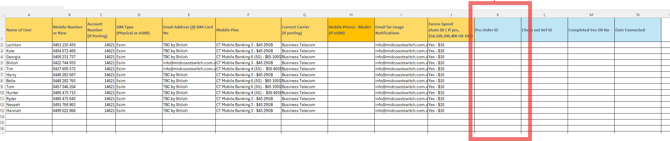
- Once completed, copy the Order ID and paste it into the Mobile Template form (only required for orders with 4 or more mobile numbers).
- Update the ticket title to:
Company Name | Octane Accnt No. | Mobiles (New or Transfer) x (no. of Mobile order) | Pre-Ordered